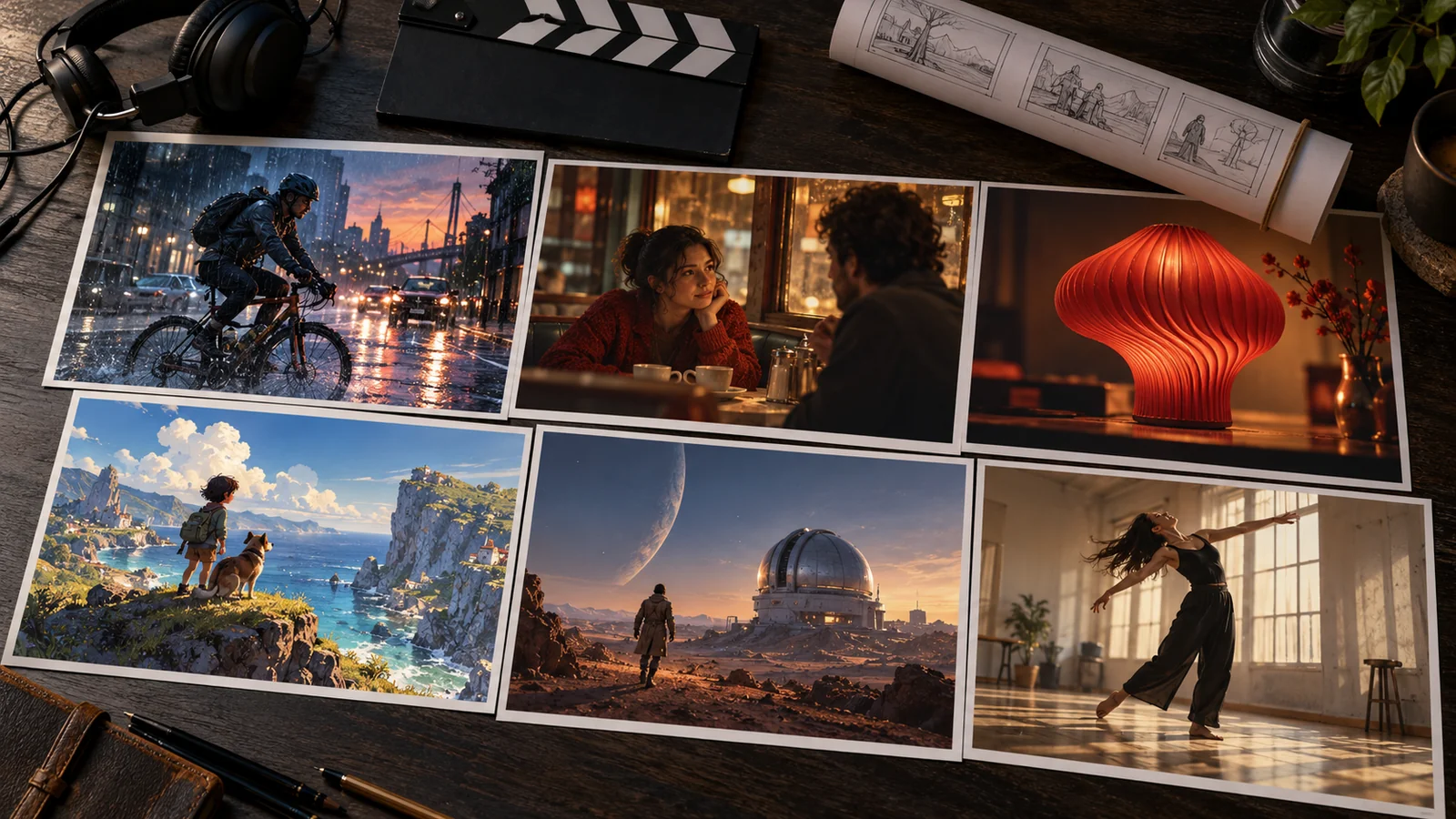
A product photo becomes a moving advertisement. A few lines of dialogue become a scene. A character sketch turns into an animated shot. AI video models can help you create all of these, but the model you choose affects how much control you have and how much work the result needs.
The best AI video model for your project depends on the scene. You might need believable movement, clear speech, a consistent character, or a camera move that follows your instructions. You might also care more about affordable drafts than the highest available resolution.
This guide compares ten AI video models, explains their useful capabilities, and helps you choose according to what you want to make. Recommendations are based on documented features and creative workflows, rather than a claim that every model has been tested against the same prompts.
Updated October 12, 2026. Availability, prices, and settings can vary by provider.
Best AI Video Models at a Glance
| Model | Recommended for | Documented clip length | Useful distinction |
|---|---|---|---|
| Gemini Omni Flash / 1.1 Flash | Conversational video editing | Depends on generation/editing mode | Refine a scene over several turns |
| Veo 3.1 | Short scenes with dialogue and sound | 4, 6, or 8 seconds, depending on settings | Native audio and frame-based controls |
| Seedance 2.5 | Longer scenes and detailed references | Up to 30 seconds per generation | Image, video, and audio references |
| Kling Video 3.0 / 3.0 Omni | Narrative shots and recurring subjects | Up to 15 seconds | Multimodal references and native audio |
| Runway Gen-4.5 | Camera direction and sequenced action | 2–10 seconds | Detailed motion instructions |
| MiniMax H3 | Multimodal audiovisual scenes | Up to 15 seconds | Native stereo audio and output up to 2K |
| Wan 3.0 | Longer clips and flexible inputs | Up to 30 seconds | References and first/last-frame control |
| Luma Ray3.2 | Controlled production and finishing | Depends on selected workflow | Frame-level direction, HDR, and EXR |
| LTX-2.5 | Fast drafts and connected shots | Fast: up to 20 seconds at supported settings; Pro: up to 10 | Fast/Pro choices and native multi-shot generation |
| FLUX 3 Video | Keyframe sequences and draft workflows | Up to 20 seconds; continuation has separate limits | Drafts, keyframes, and synchronized audio |
These limits describe particular documented workflows. Maximum duration, resolution, and frame rate are not necessarily available together.
You can explore available models through Mochi’s AI video generator. The features and rates in this comparison describe the named models and providers; available settings depend on the model you select.
What Is an AI Video Model?
An AI video model is the system that generates or transforms video from your instructions and inputs. Depending on the model, those inputs can include text, images, existing footage, and audio.
An AI video generator is the product or interface you use to access those capabilities. One generator may offer several models, while the same model may be available through several providers.
This distinction matters when comparing features and prices. A platform can offer editing, sound tools, and upscaling without all of those being built into each generation model.
1. Gemini Omni Flash
Best for: Developing and editing a video through conversation
Gemini Omni Flash is worth considering when you expect to make changes after the first generation. Google's documented workflow lets you create video and refine it over multiple turns, using natural-language instructions.
That could suit a scene whose direction is still developing. You might ask for a different environment or a change in perspective while building on the previous result. Its reference capabilities also help bring existing visual material into the process.
Key capabilities
- Text- and image-based video generation.
- Conversational revisions across multiple turns.
- Video editing and extension in supported workflows.
- Standard 720p output, with 1080p and 4K offered through upscaling.
Main consideration: Check the specific editing workflow. Google's current API has restrictions on uploaded videos, regional access, and audio references; the broad model description does not mean every input is accepted in every interface.
Pricing: Google's API lists an effective video-output cost of approximately $0.10 per second at 720p, with input and other applicable token charges additional. Check Google’s API pricing.
Choose it if: Revising a scene is as important as generating the first version.
2. Veo 3.1
Best for: Short scenes with dialogue, effects, and atmosphere
Veo 3.1 is a sensible shortlist option when sound is part of the idea. It generates native audio with video and supports prompts describing dialogue and sound.
Think of a short café scene: two people speak while cups move and background activity continues. Or a product shot where the sound of an object opening matters to the reveal.
Key capabilities
- Text-to-video and image-to-video generation.
- Native audio alongside the visuals.
- Reference images and first/last-frame controls in supported variants.
- Video extension for building beyond the original clip.
Main consideration: Veo's modes have different limits. Supported durations include four, six, and eight seconds, but higher resolutions and certain reference workflows require eight-second output. Extension also has its own restrictions.
Pricing: On Google's Gemini API, Veo 3.1 Lite starts at $0.05 per second at 720p. Standard generation with audio costs $0.40 per second at 720p or 1080p. Fast and 4K options have separate rates. Check Veo pricing.
Choose it if: You need a short audiovisual scene and want sound included during generation.
Our Veo AI guide introduces the family’s camera, reference, and audio controls.
3. Seedance 2.5
Best for: Longer scenes guided by several references
Seedance 2.5 brings a longer generation window to the comparison. ByteDance documents up to 30 seconds of audio-video output in one generation, alongside extensions and targeted editing.
That makes it a candidate for ideas that need time to unfold: a product demonstration, a character moving through a setting, or a sequence with several changes in action.
Key capabilities
- Up to 30 seconds of audio-video generation in one pass.
- Multimodal references, including images, video, and audio.
- Timestamp-level targeted editing.
- Video extensions for longer projects.
Main consideration: Thirty seconds gives you more room, but it does not guarantee that every moment will follow a complex brief. Plan the actions in order and check subject continuity throughout the result. Reference allowances also need checking in the interface you use.
Pricing: Runway's developer catalog lists Seedance 2.5 from $0.20 per second. That is a provider-specific starting rate, rather than a universal Seedance price. Check Runway’s API rates.
Choose it if: Your scene needs more time or several references to communicate the intended result.
4. Kling Video 3.0 and 3.0 Omni
Best for: Narrative scenes and reference-driven subject control
Kling's 3.0 family is relevant when a shot includes characters, objects, and a sequence of actions. Kuaishou documents generation, reference, and editing tasks within its multimodal framework.
The Omni variant adds reference-based features intended to carry subject information into new scenes. That is useful to investigate when a person, outfit, or product needs to remain recognizable.
Key capabilities
- Text-to-video, image-to-video, and reference-driven generation.
- Clips up to 15 seconds.
- Native audio across multiple languages, dialects, and accents.
- Reference and editing capabilities across the 3.0 family.
Main consideration: Video 3.0 and Video 3.0 Omni are separate options. Compare the controls you need instead of assuming the same features are available in both. Compare Kling 3.0 Omni’s controls.
Pricing: Costs depend on the provider, variant, output settings, and billing plan. Check the charge for your intended duration and audio configuration.
Choose it if: You want to explore a narrative scene with a recurring subject and visual references.
See the Kling AI guide for an introduction to its text-to-video and image-to-video workflows.
5. Runway Gen-4.5
Best for: Camera direction and carefully sequenced movement
Runway Gen-4.5 is worth considering when your prompt describes how a shot should unfold. Runway documents support for detailed camera choreography, timed actions, and atmospheric changes.
For example, you could describe a camera tracking beside a cyclist, then moving closer as the cyclist stops. The useful comparison is whether the result follows that sequence while keeping the scene coherent.
Key capabilities
- Text-to-video and image-to-video generation.
- Detailed camera and action instructions.
- Durations from two to ten seconds.
- 720p output at 24 or 25 frames per second.
Main consideration: Distinguish Gen-4.5 from the wider Runway toolset. Video editing through Aleph, performance animation through Act-Two, and other finishing tools are separate capabilities.
Pricing: Runway's web guide lists 12 credits per second for Gen-4.5. Its developer catalog lists $0.12 per second through the API. Subscription credits and API billing are separate arrangements. Check Runway’s API pricing.
Choose it if: Camera movement and the timing of actions are central to your shot.
6. MiniMax H3
Best for: Scenes combining multimodal references and stereo sound
MiniMax H3 supports context from text, images, video, and audio, with native stereo sound. MiniMax documents output up to 15 seconds at 2K resolution.
It is a candidate for briefs where different references carry different parts of the idea. A visual reference might define the setting while another input helps direct movement or the audiovisual scene.
Key capabilities
- Multimodal context across text, images, video, and audio.
- Video generation with native stereo sound.
- Up to 15-second output at resolutions up to 2K.
- Documented motion-transfer and editing applications.
Main consideration: H3, H3 Max, and other related options should be compared separately. A platform's simplified “Hailuo” label may hide meaningful differences in inputs, controls, and resolution.
Pricing: Runway's developer catalog lists MiniMax H3 from $0.10 per second. Settings and provider choice affect the final charge. Check the provider’s rate card.
Choose it if: You need audiovisual generation informed by several kinds of reference material.
7. Wan 3.0
Best for: Longer clips with flexible inputs and frame controls
Wan 3.0 is another option for generating up to 30 seconds in one run. Alibaba Cloud documents text, image, video, and audio inputs, alongside reference-based generation.
Its first- and last-frame modes are useful to consider when you already know how a shot should begin and end. A product scene, for example, could start with closed packaging and finish on the revealed object.
Key capabilities
- Text-to-video and image-to-video generation.
- First-frame and first/last-frame workflows.
- Multimodal references and native audiovisual generation.
- Output at 480p, 720p, or 1080p, with clips up to 30 seconds.
Main consideration: The Wan family includes different versions and access routes. Wan 3.0's hosted features should not be treated as identical to older downloadable checkpoints.
Pricing: Runway's developer catalog lists Wan 3.0 from $0.05 per second. Alibaba Cloud has its own rate card, so identify the provider when comparing prices. Check Runway’s API rate card.
Choose it if: You need a longer generation window or clear starting and ending frames.
8. Luma Ray3.2
Best for: Production work where control and finishing matter
Luma Ray3.2 is a useful candidate for creators who need to direct the result more precisely and move it into a professional finishing workflow.
Luma's official announcement emphasizes frame-level control, HDR generation, and EXR output. HDR supports a wider brightness range, while EXR is an image-sequence format used in compositing and finishing.
Key capabilities
- Frame-level direction of action and changes.
- HDR generation.
- EXR outputs for compatible production workflows.
- Integration into Luma's creative and developer offerings.
Main consideration: Advanced output formats add value when your editing pipeline can use them. For a simple social post, a familiar export format and an efficient revision process may matter more.
Pricing: Review the current Luma plan or API rate for the selected workflow. Treat generation, higher-quality output, and finishing operations as separate cost questions. Explore Luma’s API.
Choose it if: You intend to composite, grade, or otherwise finish the generated footage.
9. LTX-2.5
Best for: Fast iteration and connected multi-shot scenes
LTX-2.5 has Fast and Pro variants, giving you a choice between faster generation and higher-fidelity output. Its documentation also describes native multi-shot generation, with connected scenes produced in one request.
That makes it worth investigating for short narratives rather than only individual shots.
Key capabilities
- Text-to-video, image-to-video, and audio-to-video modes.
- Native multi-shot generation.
- Portrait and landscape output up to 4K at supported settings.
- Camera-motion and last-frame controls in compatible modes.
Main consideration: Duration depends on the variant, resolution, and frame rate. Fast supports up to 20 seconds at certain 720p and 1080p settings; Pro supports up to ten seconds. The documented 2.5 endpoints do not currently include retake or extend.
Pricing: LTX's API lists 720p generation at $0.09 per second for Fast and $0.12 for Pro. Resolution changes the price. Check LTX pricing.
Choose it if: You want draft/fidelity choices or connected shots within one generation.
10. FLUX 3 Video
Best for: Keyframe direction and a draft-first workflow
FLUX 3 Video combines video and synchronized audio, with modes for text, images, and continuing existing footage.
Its draft workflow is particularly useful to investigate when you expect several attempts. You can explore a cheaper preview, then enhance the chosen generation to full quality.
Key capabilities
- Video with speech, sound effects, and ambience.
- Text-to-video, image/keyframe input, and continuation modes.
- Up to 20 seconds for supported generation modes.
- Draft generation followed by enhancement.
Main consideration: Continuation has a shorter documented duration limit than other generation modes. Also budget for both the draft and its enhancement; the preview is an additional paid step.
Pricing: BFL documents full renders from $0.17 per second and drafts from $0.06 per second, with mode-specific rates. Check BFL’s video pricing.
Choose it if: You want keyframe guidance and a way to explore drafts before committing to a final render.
Which AI Video Model Should You Choose?
The most useful shortlist starts with the job.
| Your priority | Models to compare first | What to inspect |
|---|---|---|
| Dialogue and scene sound | Veo 3.1, MiniMax H3 | Speech, synchronization, ambience |
| Longer generation | Seedance 2.5, Wan 3.0 | Continuity and action timing |
| Revisions through conversation | Gemini Omni Flash | Whether changes preserve the scene |
| Camera choreography | Runway Gen-4.5 | Movement, timing, subject stability |
| Reference-driven narrative | Kling 3.0 Omni, Seedance 2.5 | Faces, clothing, objects across shots |
| Professional finishing | Luma Ray3.2 | Output formats and editing compatibility |
| Connected shots | LTX-2.5 | Consistency across cuts |
| Keyframes and previews | FLUX 3 Video | Transitions and draft-to-final results |
These are starting points based on documented controls. Compare the models on your actual scene before choosing a final workflow.
For Product Videos
Start with a clear reference image if the product's appearance matters. Check the shape, cap, packaging, label, and reflections throughout the clip.
A model that creates a beautiful reveal but changes the product halfway through may cost more editing time than a simpler result that preserves it.
If you need to create the starting visual, Mochi’s AI image generator can help you develop a reference before animating it.
For Character Stories
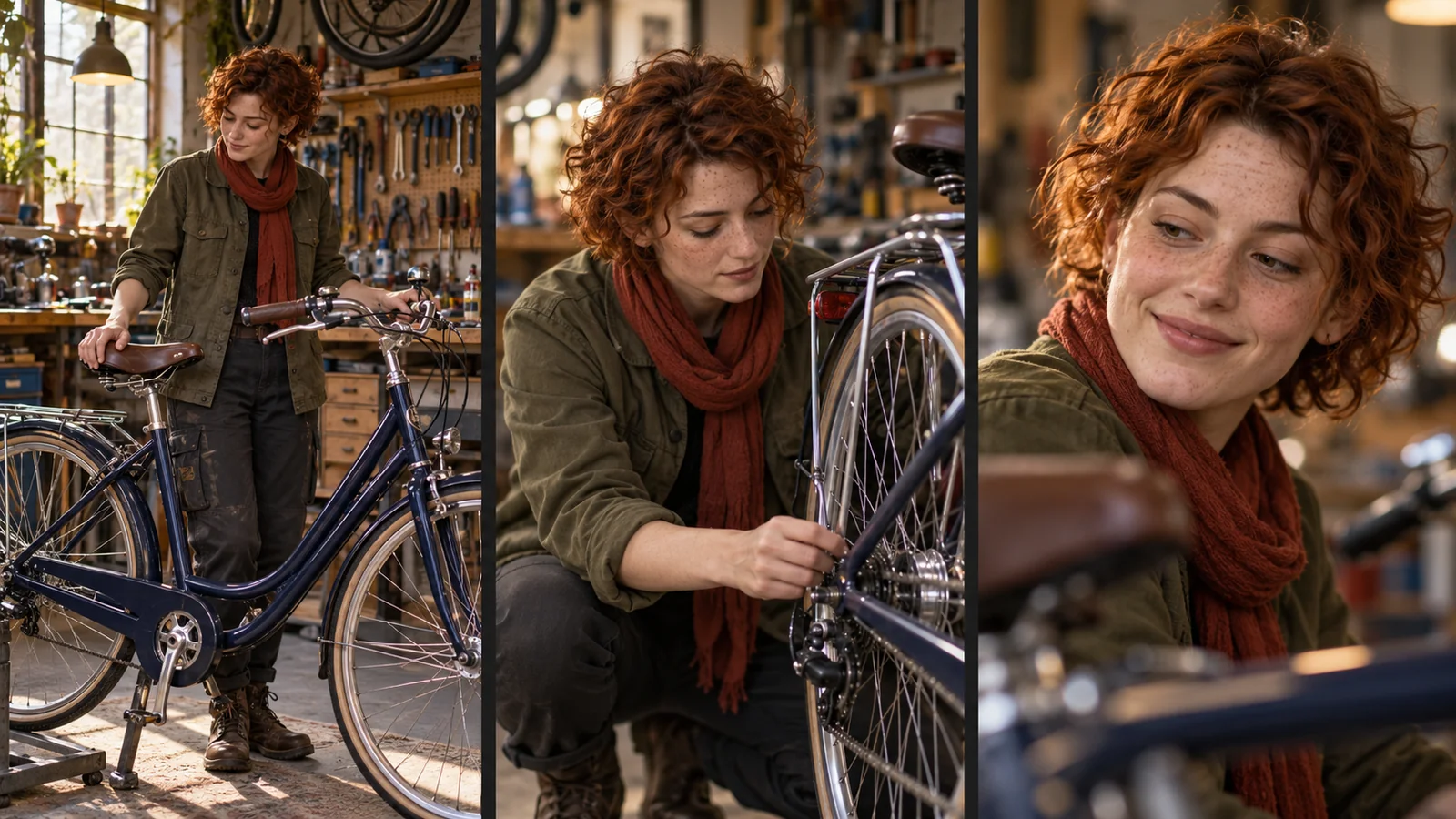
Reference support is useful, but inspect more than the first frame. Compare the face, clothing, proportions, and voice across movement and cuts.
Generate a small sequence before planning an entire film around a model.
For Social Clips
Think about the final placement. A vertical clip needs composition that leaves room for captions and keeps important details away from interface overlays.
Affordable iteration, manageable exports, and the right aspect ratio can matter more than the longest available generation.
What Does AI Video Generation Actually Cost?
The advertised price is only part of the decision. Duration, resolution, model variant, audio, and repeated attempts can all affect spending.
Here are examples of published API rates:
| Model and provider | Settings or billing basis | Published rate |
|---|---|---|
| Veo 3.1 Lite — Google | 720p video with audio | $0.05 per second |
| Veo 3.1 Standard — Google | 720p or 1080p video with audio | $0.40 per second |
| Gemini Omni Flash — Google | Effective 720p video-output rate | Approximately $0.10 per second, plus applicable input/other charges |
| Gen-4.5 — Runway API | Listed generation rate | $0.12 per second |
| LTX-2.5 Fast — LTX API | 720p text/image-to-video | $0.09 per second |
| LTX-2.5 Pro — LTX API | 720p text/image-to-video | $0.12 per second |
| FLUX 3 — BFL | Draft/full render starting rates | From $0.06/$0.17 per second |
These are provider-specific examples, not identical-setting benchmarks or Mochi prices. Check the selected configuration before generating.
Compare the Cost of a Usable Result
Suppose one attempt costs $1.50 and you need three attempts to obtain an acceptable clip. Your generation spend is $4.50, before editing or finishing.
A useful calculation is:
Cost per accepted clip = total generation spend ÷ number of accepted clips.
Track this over several representative scenes. It tells you more than the cheapest advertised generation rate.
Understand What “Free” Includes
Free credits, a trial, and downloadable model weights are different offers.
A hosted allowance may limit generations, resolution, or exports. Downloadable weights still need hardware and a compatible setup. Their exact license also matters.
Choose based on what you can finish within the allowance, rather than the word “free” alone.
What to Look for Before Choosing an AI Video Model
Prompt Adherence
Does the model follow the action, setting, and shot direction? A visually impressive result can still miss the brief.
Motion and Physical Coherence
Inspect walking, handling objects, liquid movement, and interactions. Watch for objects changing shape, surfaces merging, or movement that loses continuity.
Reference Fidelity
If you supply a photo, does the result preserve the details that matter? Check the product or character throughout the video.
Camera Control
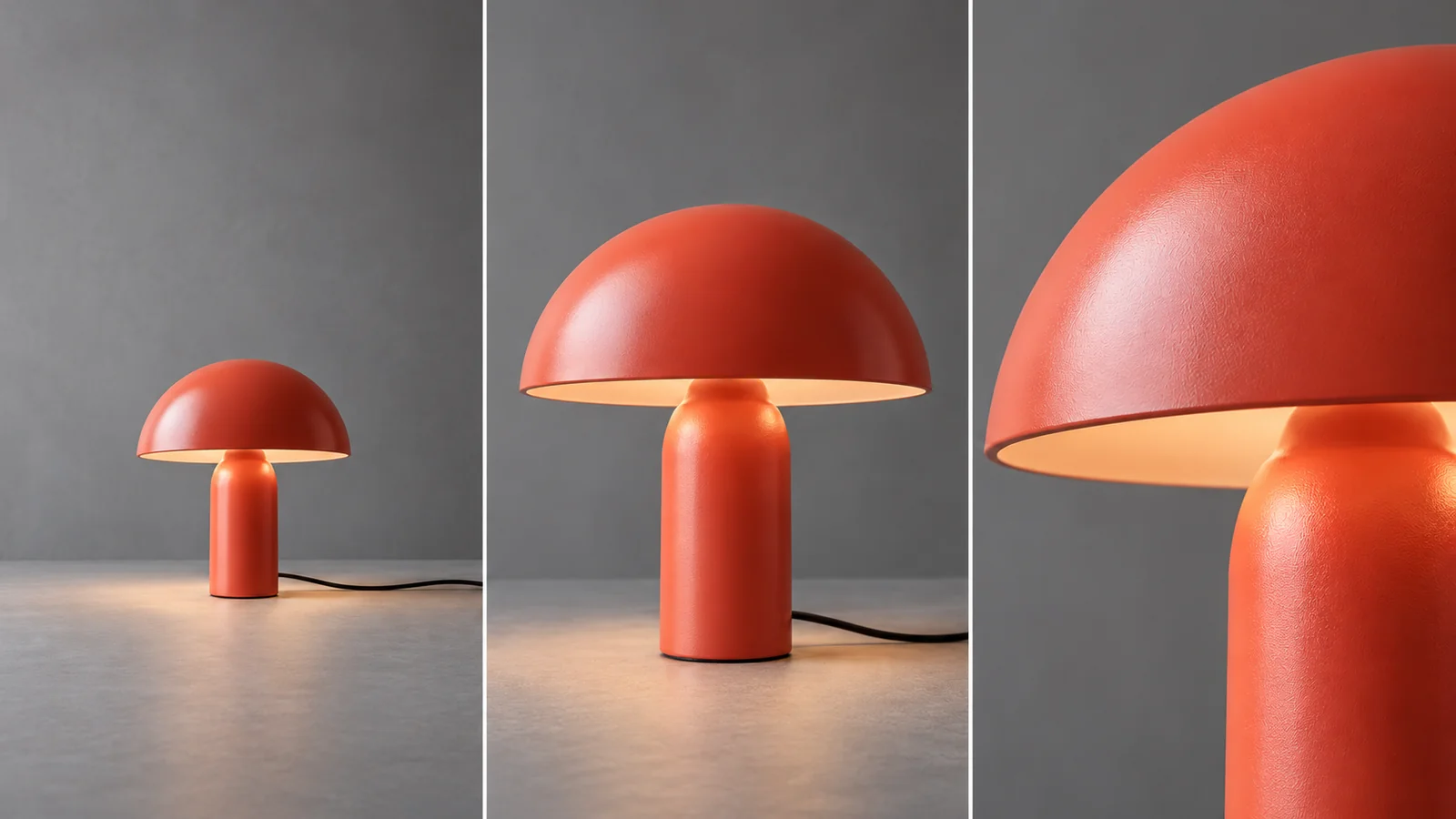
Separate camera movement from subject movement in the prompt. “The camera moves closer while the bottle stays still” gives a clearer instruction than “a dynamic product shot.”
Audio
Listen separately as well as watching. Check speech clarity, timing, abrupt transitions, and whether effects match the action.
Revision Options
Consider how you will fix one detail. You may need conversational editing, keyframes, targeted revisions, or a separate editor.
Output and Workflow
Check the aspect ratio, resolution, duration, and export format you actually need. A large maximum specification is useful only if it applies to your chosen mode.
How to Compare Models With Your Own Scene
Choose one representative task and use the same brief in two or three models.
For example:
A clear glass perfume bottle with a brushed silver cap stands on pale stone. The bottle remains still while the camera makes a slow, smooth push-in. Soft window light comes from the left. Keep the bottle shape and label unchanged. No cuts and no additional objects.
Our AI image generator comparison can help you choose a tool for creating that starting reference.
If using image-to-video, supply the same reference image. Keep duration, aspect ratio, and output settings comparable where possible.
Then assess:
- Did the result follow the instructions?
- Did the subject remain recognizable?
- Was the movement coherent?
- Did any required sound fit the scene?
- How many attempts did it take?
- How much finishing work remains?
Repeat with another task before committing. A model that suits a quiet product shot may behave differently with dialogue or fast action.
Frequently Asked Questions
What Is the Best AI Video Model in 2026?
There is no single winner for every project. Gemini Omni is worth considering for conversational editing, Veo for short audiovisual scenes, Seedance and Wan for longer generation, and Runway for camera-directed shots. Choose according to the capabilities your scene needs.
Which AI Video Model Is Best for Image-to-Video?
Start with a model that offers the reference and motion controls you need. Several entries in this guide support image-led generation. Compare them using the same photo, checking how well they preserve its subject while adding movement.
Which AI Video Models Generate Sound?
Veo 3.1, Seedance 2.5, Kling 3.0, MiniMax H3, Wan 3.0, and FLUX 3 document native audiovisual generation. Audio modes and controls vary by model and provider.
Which Model Is Best for Character Consistency?
Shortlist models with subject references, multimodal inputs, or connected-shot controls. Kling 3.0 Omni, Seedance 2.5, Gemini Omni, and LTX-2.5 offer relevant documented capabilities, but consistency still needs checking across your scenes.
Which AI Video Model Generates the Longest Clips?
Among the models covered here, Seedance 2.5 and Wan 3.0 document up to 30 seconds per generation. Longer finished videos may use extension or several clips, which should be distinguished from one generation.
What Is the Cheapest AI Video Model?
Compare rates for the same task and settings. Google lists Veo 3.1 Lite at $0.05 per second for 720p, while other models offer different starting rates or draft modes. The cheapest attempt may not produce the cheapest usable result.
Are There Free AI Video Models?
Some platforms offer introductory credits or limited free access. Some model checkpoints have downloadable weights. Those options have different limits, hardware requirements, and terms; check the exact version and provider.
Can I Create a Full Advertisement With One Model?
A model may generate the footage you need, especially for a short advertisement. You may still need to add accurate typography, arrange shots, adjust sound, and prepare the final export in an editor.
Is Sora Still Available?
OpenAI discontinued the Sora web and app experiences on April 26, 2026. Its published API shutdown date was September 24, 2026. It is therefore excluded from this guide's active-model recommendations. Read OpenAI’s discontinuation notice.
What Is the Difference Between a Model and a Video Generator?
A model creates or transforms the footage. A video generator is the interface or platform through which you use it. The platform may add tools or offer several models with separate features and prices.
Final Thoughts
Start with the scene you need to make. Decide which details must stay accurate, how the camera should move, whether sound is necessary, and how much time the action needs.
Use those requirements to shortlist a few models, then compare them with the same brief. The best AI video model is the one that helps you reach a usable result with manageable revisions and cost.
Ready to try a scene? Open Mochi’s AI video generator and choose an available model for your first comparison.